
How do I enroll families on the Upwards App with Self- Enrollment?
Joining Upwards is the easiest and safest way to welcome new families into your program. Follow the simple steps below to get started! Great news! You can now send enrollment links directly to parents without having to wait for our care navigators to get in contact.
1. Tap on "Inbox" at the bottom of your screen.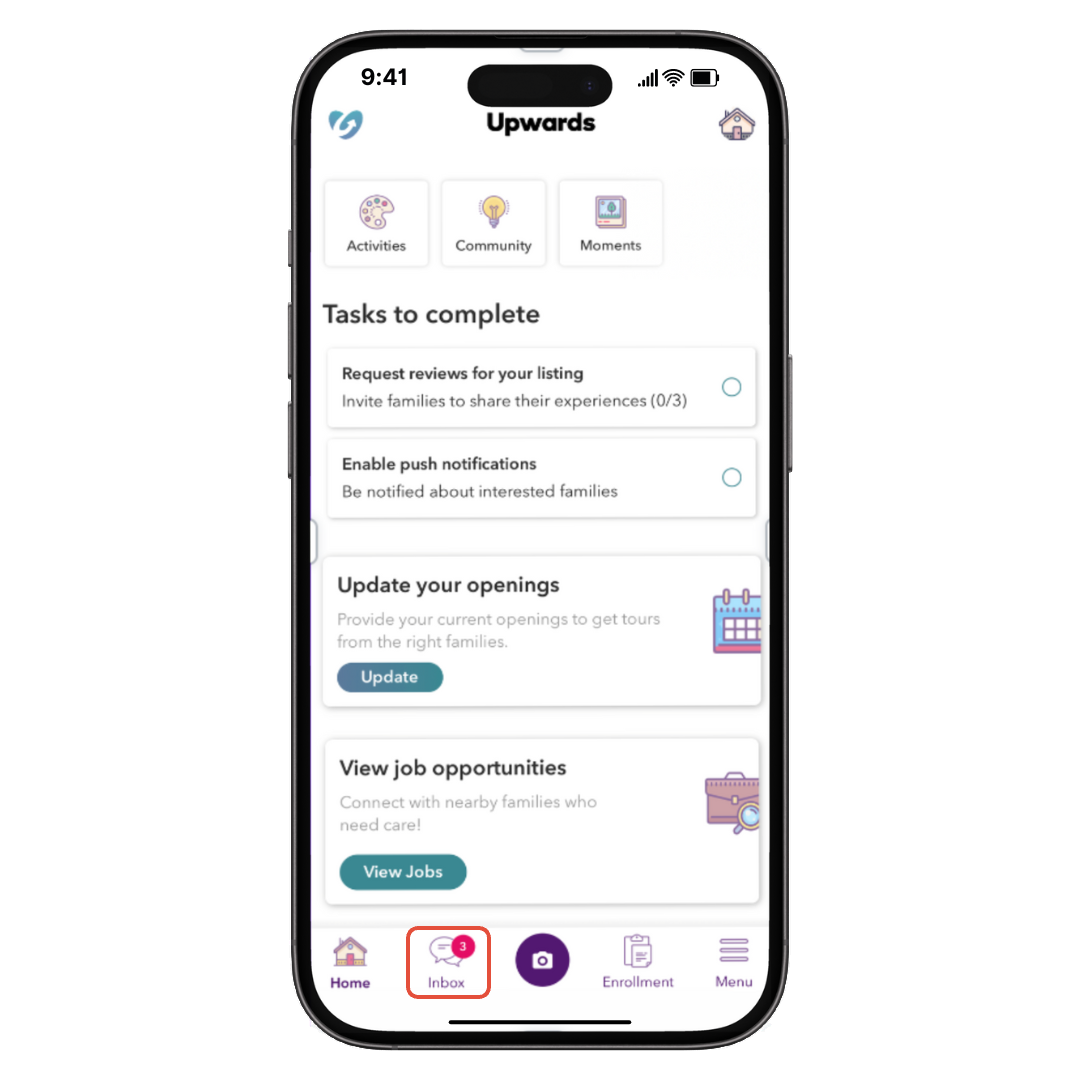
2. Tap on the Parent's profile that is ready to enroll!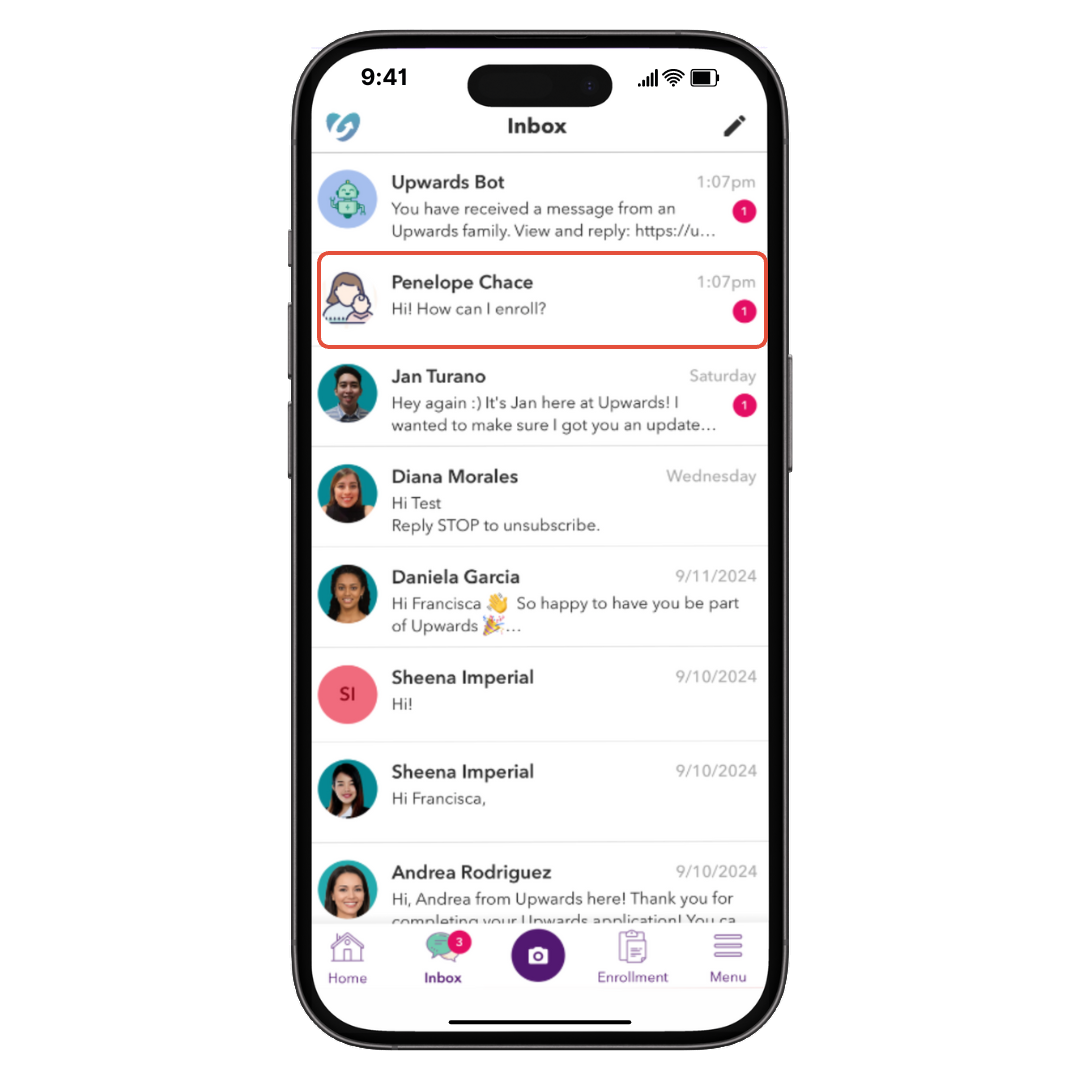
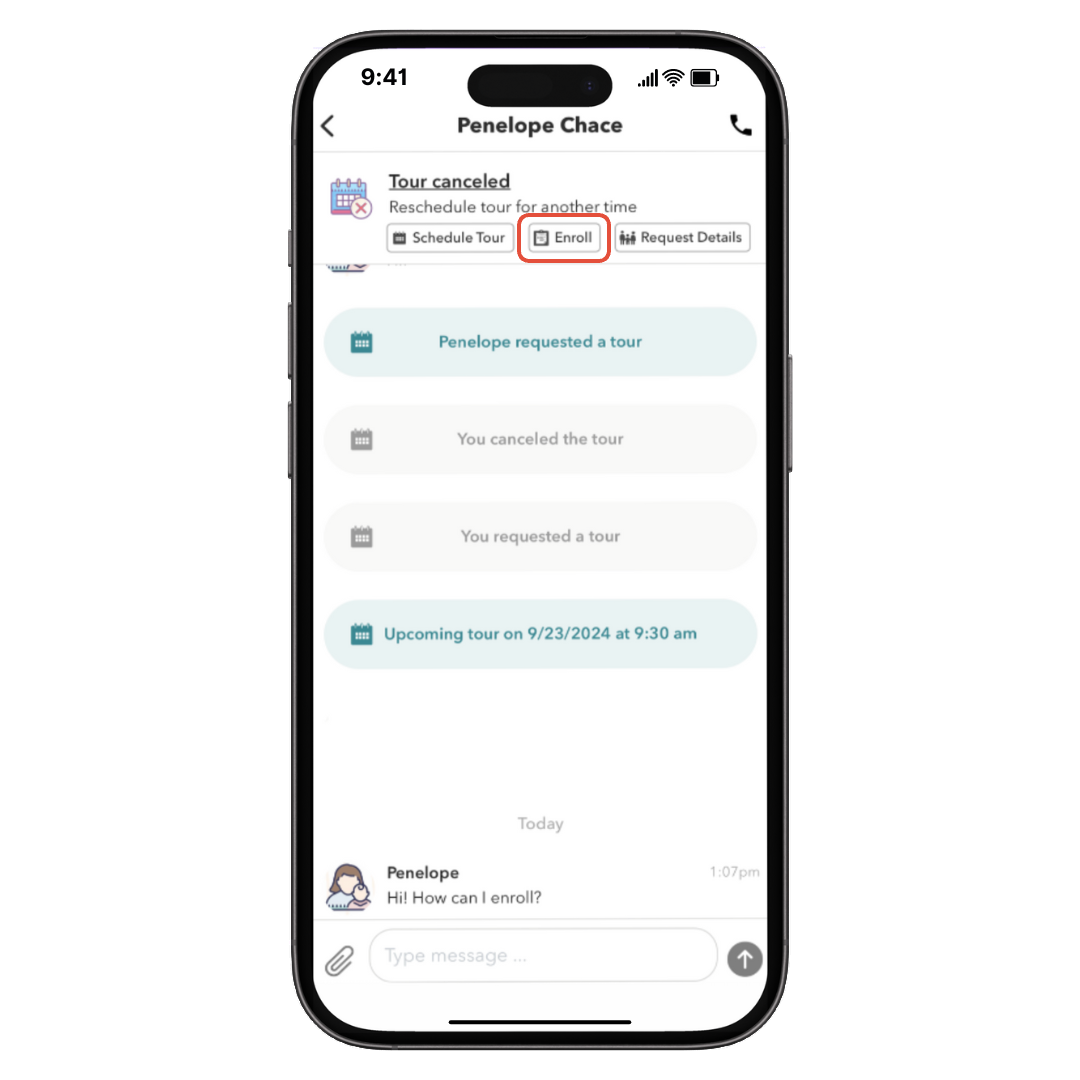
3. Select “Enroll” near the top of your screen.
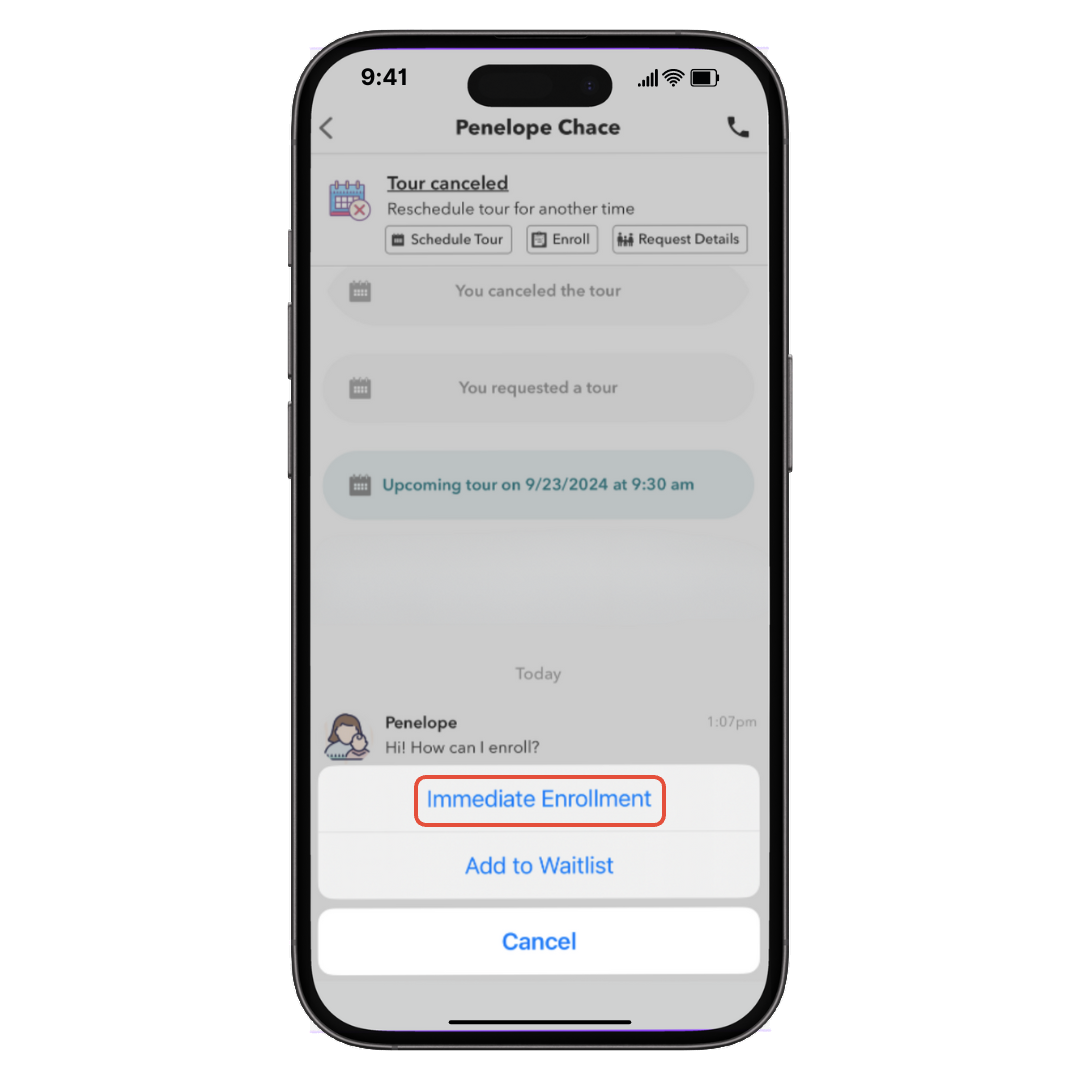
4. Select “Immediate Enrollment” to kick-off this process.
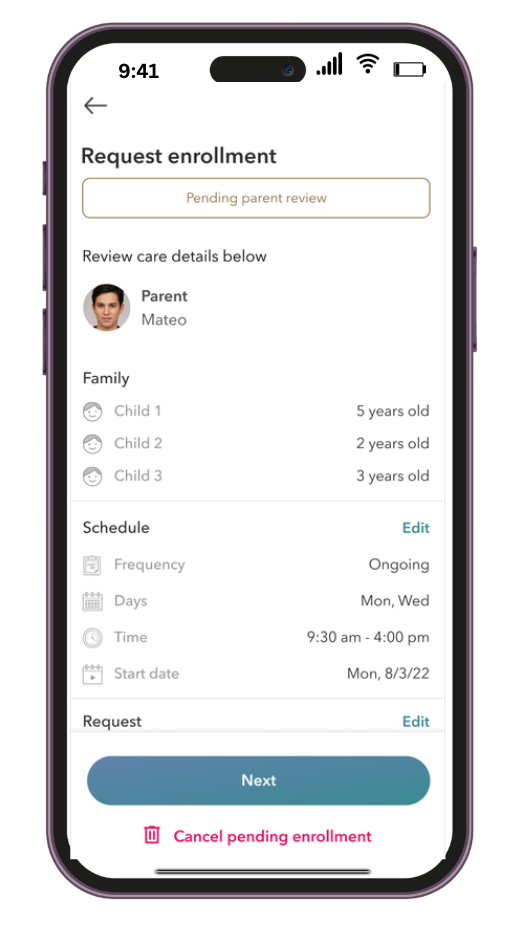
5. Review the care information provided by the parent, edit any schedule changes, or any additional requests sent by the parent, once everything looks good click Next.
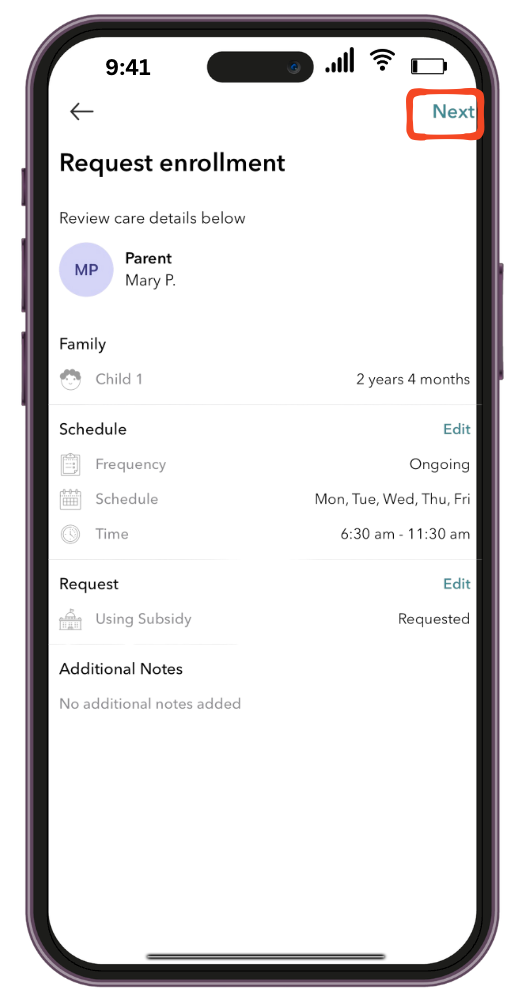
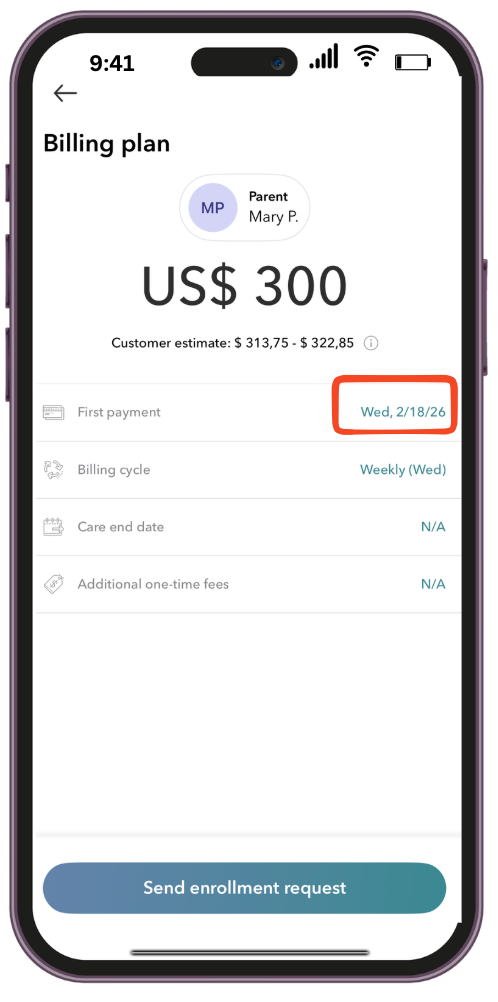
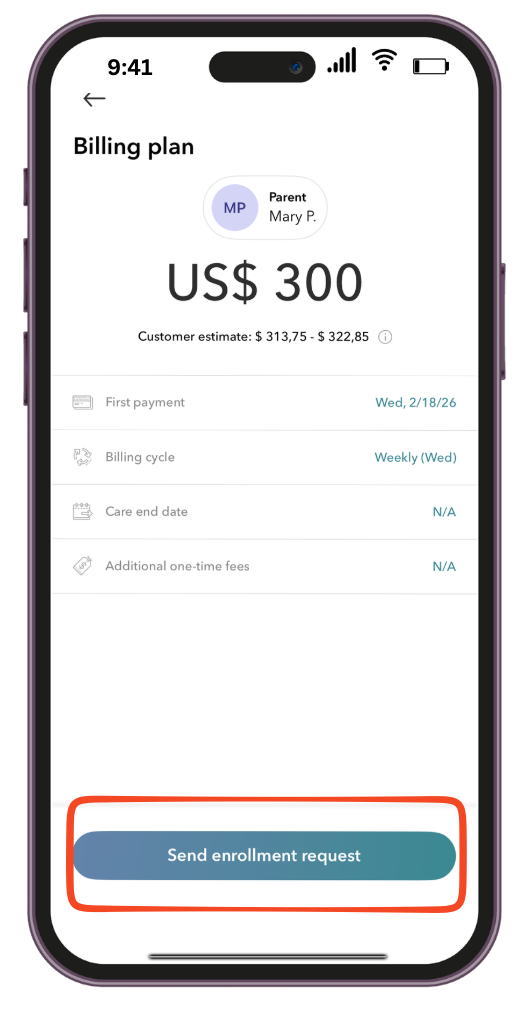
6. In this step, you'll add the tuition amount for the family.
NOTE: If there are multiple kids, you will need to add the total amount for the family (Ex: Kiddo 1 tuition: $320, Kiddo 2 tuition: $250; total amount for the family $570 for the family weekly.
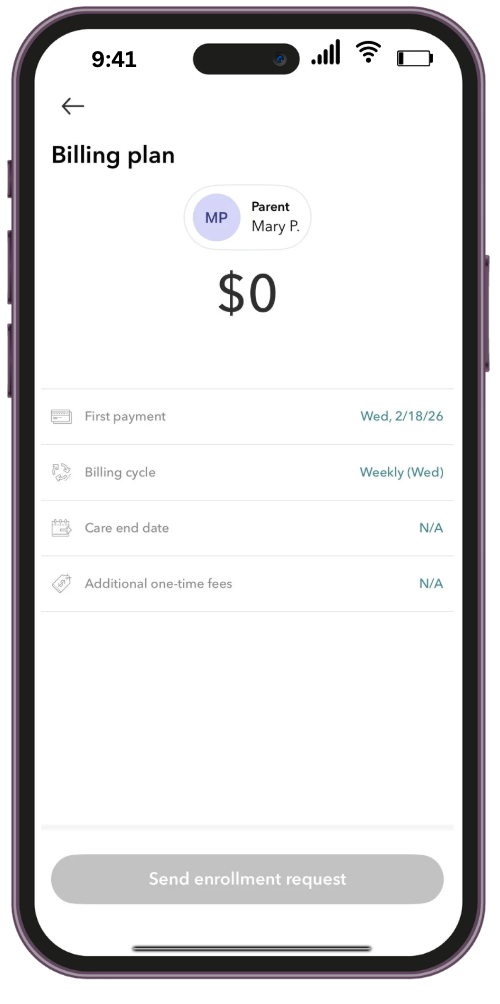
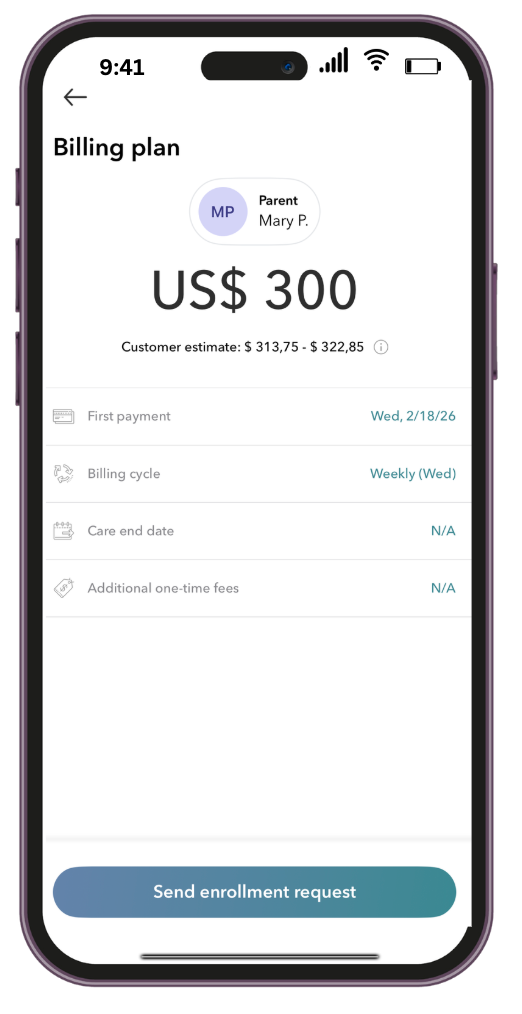
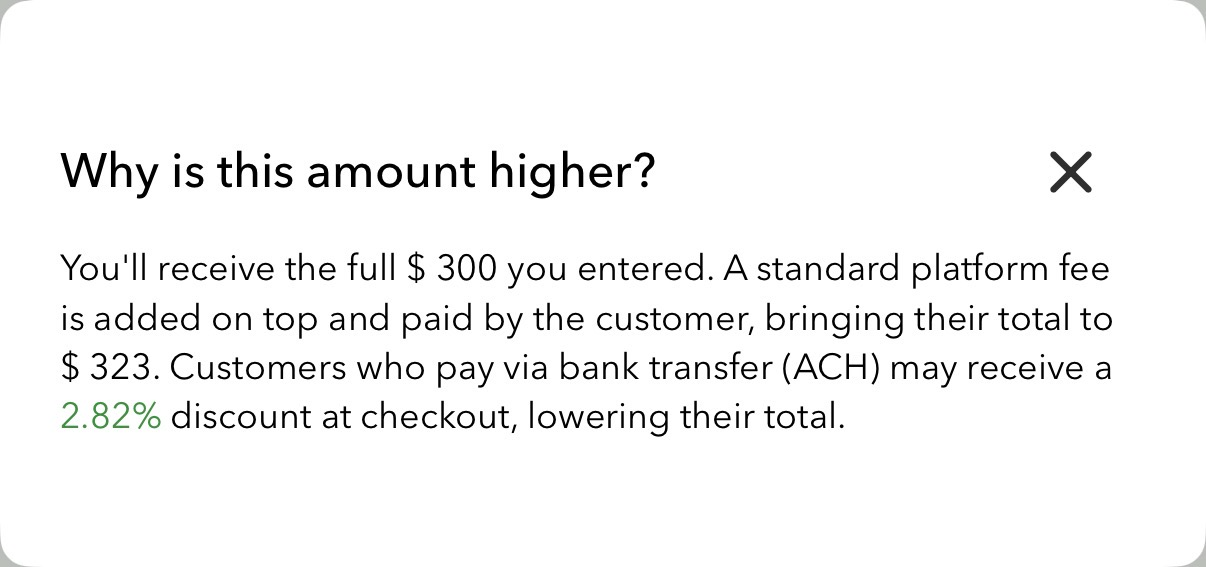
Please add your take-home rate here; the system will calculate the parent fee, which is the customer estimate found below your take-home rate.
 |  |
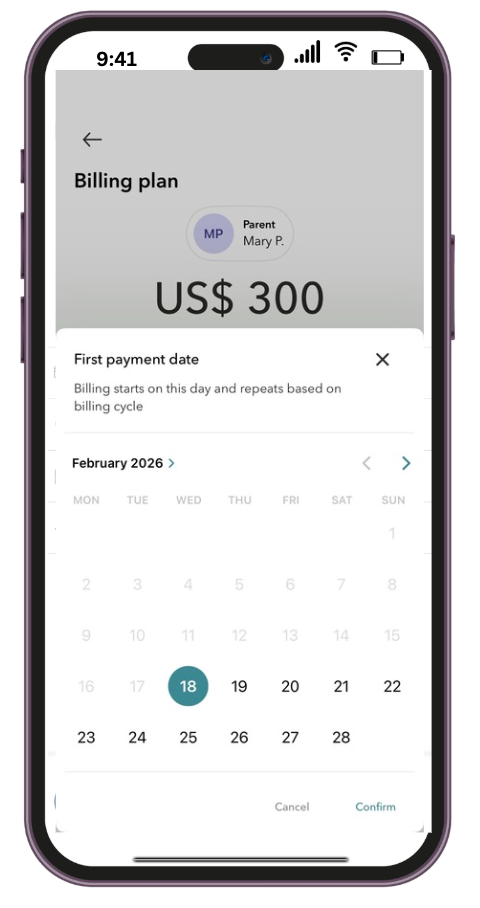
Please select when you would like to collect your first payment. Our system defaults to collecting one week in advance. If you would like to align it with the parents' payment schedule, you can choose a different date that works better for you.
 |  |
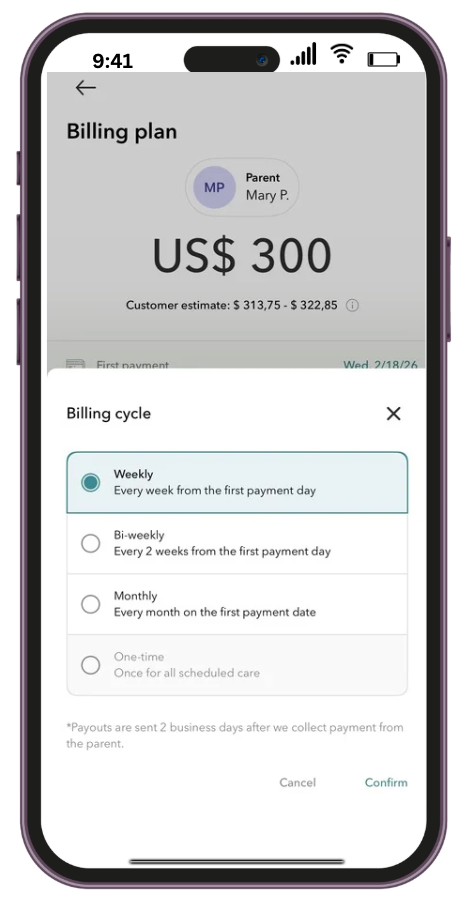
You can also select a different billing cycle if the family requests:
Need to add a registration fee or enrollment fee? You can now add it for each family:
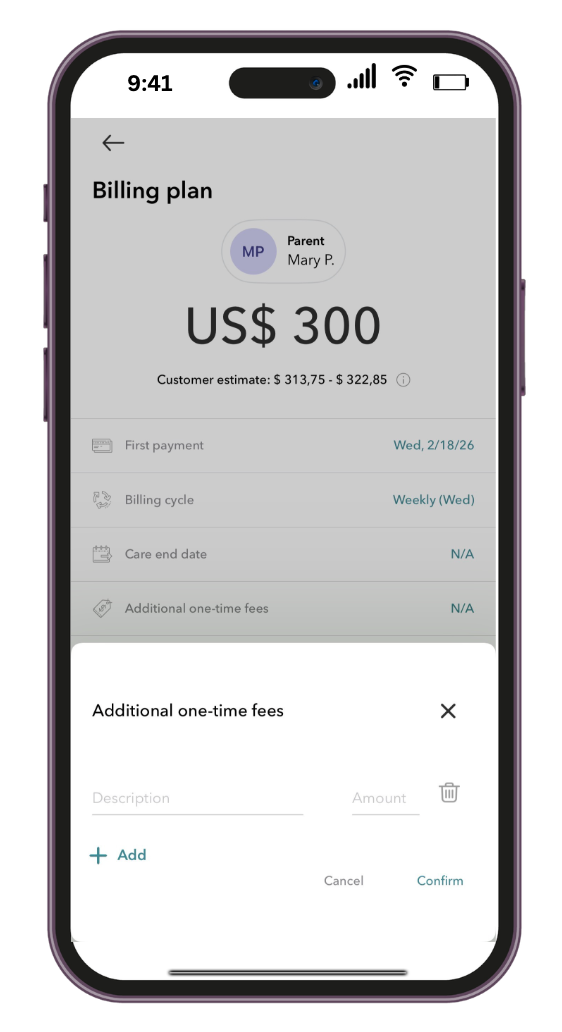 Just add description and amount
Ex: Registration fee: $100 (if there are two kiddos, you would add $200). Other examples include: Potty training fee, late fees, transportation, and material fees.
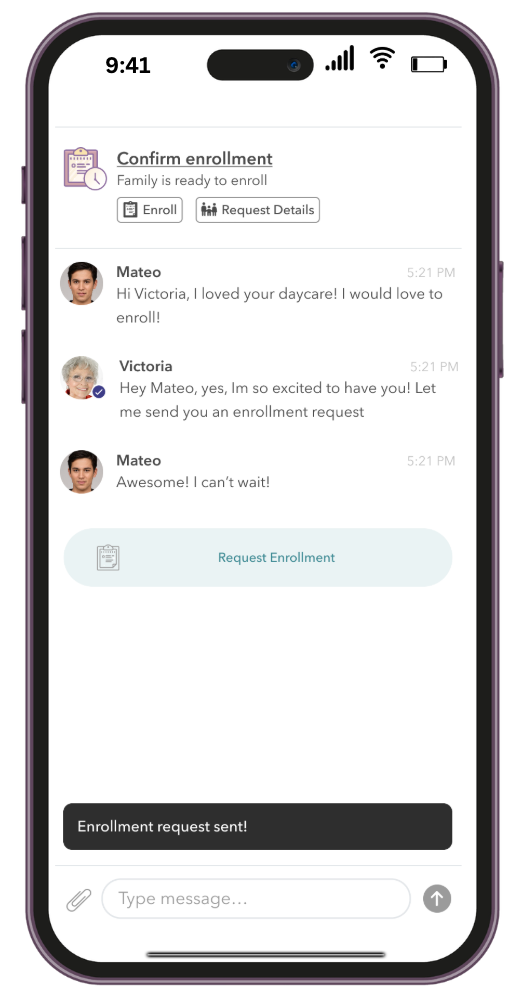
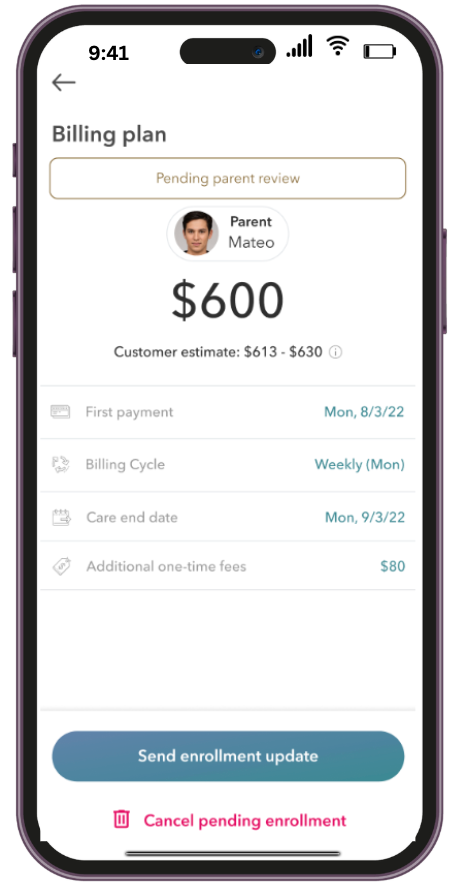
7. You can now send the Enrollment request to the family once you are certain all is correct, and wait for them to complete it or request any changes.
 |  |
How do I review and approve enrollment changes requested by the Family?
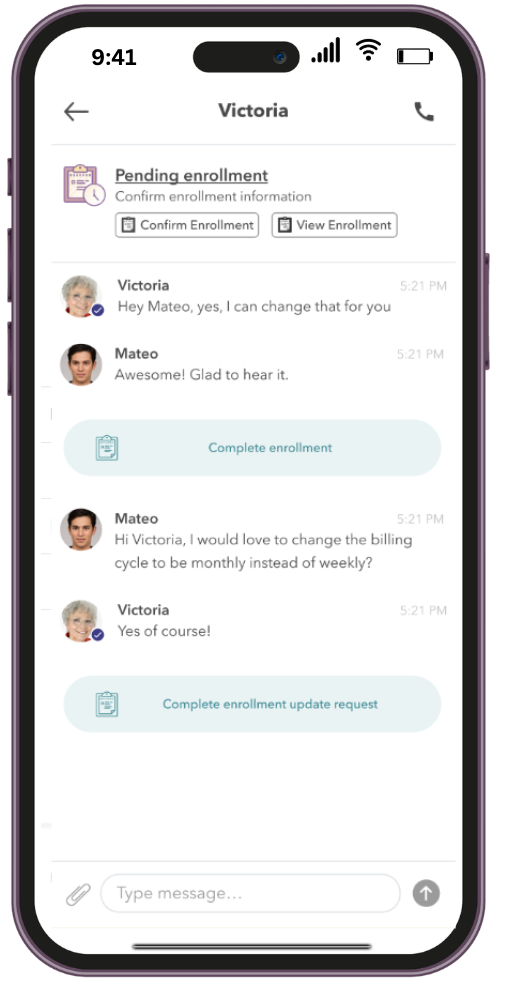
Families also have the ability to request changes to the enrollment, this will look like a normal message in your inbox.
You can go in make the changes the parent requested by clicking in view enrollment. Once you make the changes you can send the enrollment again.
 |  |  |
 | Need Help? If you need any assistance or have questions, feel free to contact our Support Team by submitting a ticket or emailing us at support@upwards.com! |
Was this article helpful?
That’s Great!
Thank you for your feedback
Sorry! We couldn't be helpful
Thank you for your feedback
Feedback sent
We appreciate your effort and will try to fix the article